Can iPhone Screen Time set a time limit every time you open an app?
Not with Apple’s built-in App Limits. Those limits add up use across the day. If you set a daily limit of 20 minutes and use 15 minutes at lunch, reopening the app later does not give you another 20 minutes. Apple explains the setting in its Screen Time schedules and time allowances guide.
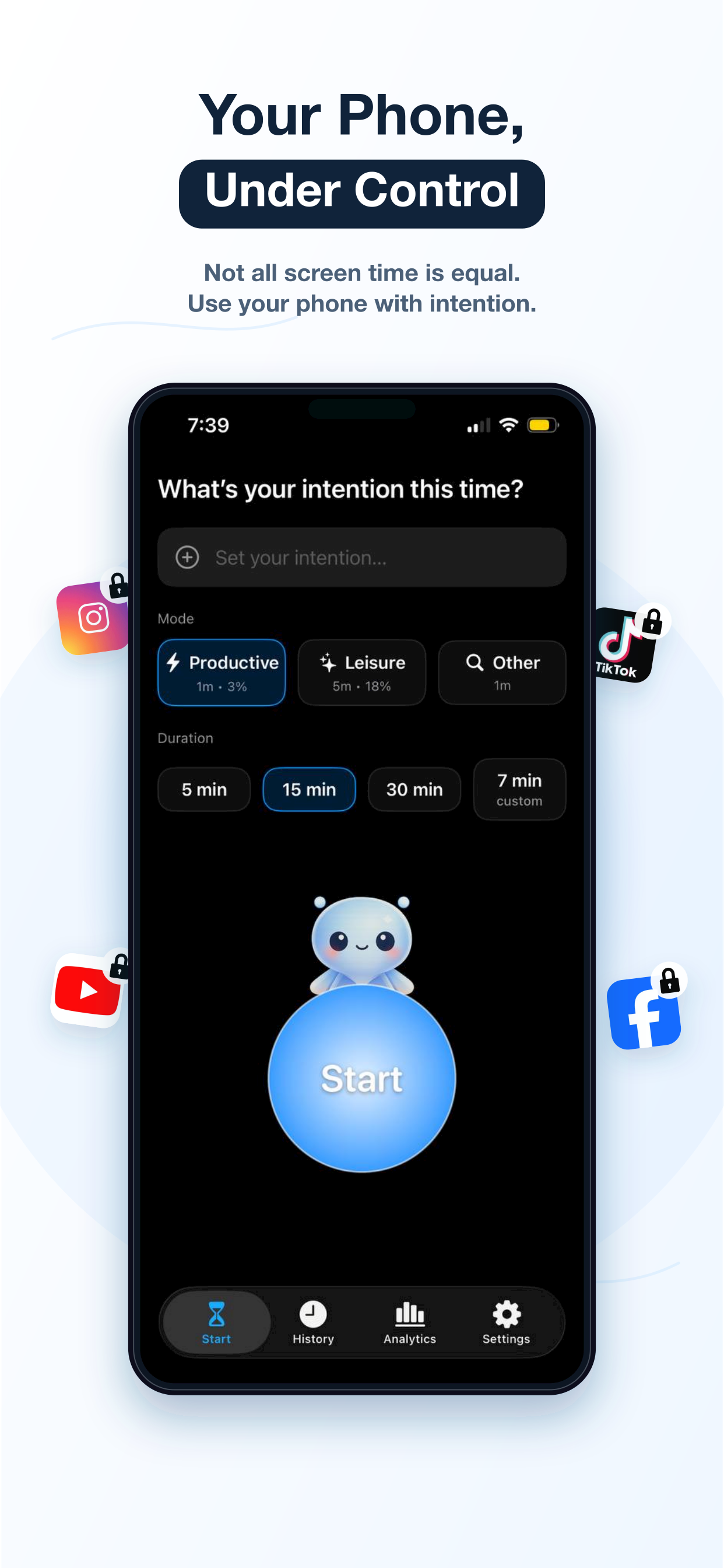
A per-session timer gives this visit a stopping point. In Timo, choose what the session is for and start the timer before opening the app. It is a session timer, not a daily cap assigned to that app.
Daily App Limits vs a per-session timer
| Question | Apple Screen Time App Limits | Timo timed session |
|---|---|---|
| What it measures | Time in the selected app or app category | Time by the kind of session you choose, such as productive time or leisure |
| What you can set | A daily allowance for an app or app category | A duration for this session, plus separate targets and limits for types of phone time |
| If you use Instagram for two reasons | An Instagram App Limit counts both uses towards the same allowance | You can log a work session and leisure browsing as different types of time |
If your goal is a daily cap, here’s how to set daily App Limits on iPhone. Use a per-session timer if your problem is one quick check turning into half an hour.
Make your next session intentional
Choose how long before you open the app
Use Timo to choose how long this session will last, set a productive time goal, or enforce a leisure limit. An active Pro subscription is required to use Timo’s app features. Subscription terms are shown before purchase.
Download on the App StoreThe same app can serve two different purposes
Say you use Instagram for ten minutes to reply to customers and later spend five minutes scrolling Reels. An Apple App Limit for Instagram counts 15 minutes of use. In Timo, you can choose a productive session for the replies and a leisure session for Reels. The app is the same, but the purpose you choose is different.
In Timo, you can set a goal for how much productive time you want to spend, and set and enforce limits for a category such as leisure. The productive goal is something to work towards; the leisure limit puts a boundary on that kind of use. Timo uses the session you choose, rather than deciding by itself whether an Instagram visit was productive.
How to give yourself five minutes on Instagram
- Give Timo Screen Time access during setup and check that Instagram is available for the kind of session you want to start.
- Open Timo first. Choose the kind of time that fits your task, pick a reason, set five minutes, and start the session in Timo.
- Now open Instagram. Go straight to your messages. The five-minute window is already running.
- Close Instagram when you’ve finished. If you use Timo’s blocking, check that your configured restrictions return when the session ends.
If Instagram is unavailable during the session, check which apps you allow for that kind of time in Timo and whether Apple’s separate App Limits or Downtime is restricting it.
What if you only want a reminder?
Set a five-minute timer in Apple’s Clock app before opening Instagram. The alarm is a cue to stop; it doesn’t block Instagram. That can be enough if you already know what you came to do. For more ways to leave once that task is finished, see how to stop scrolling on Instagram without deleting it.